
Removing the SecureSafe desktop app from your Mac takes less than a minute. Your SecureSafe account and the data stored in it remain available on our servers, and you can sign in again at any time from the web app or by reinstalling the application.
- Quit the SecureSafe desktop app if it is running. You can do this by clicking SecureSafe in the menu bar at the top of your screen and selecting Quit SecureSafe.
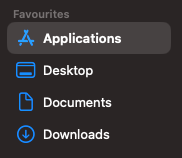
- Open Finder and select Applications in the sidebar under Favourites.
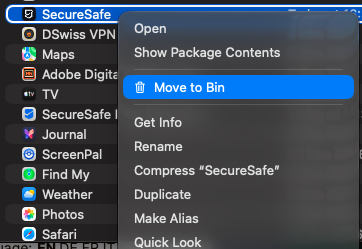
- Find SecureSafe in the list of applications, right-click it (or Control-click), and choose Move to Bin.
- If prompted, enter your Mac user password to confirm.
- To remove the app completely, right-click the Bin icon in your Dock and select Empty Bin.
The SecureSafe desktop app is now removed from your Mac. If you need help, please contact our support team at https://help.securesafe.com/kb-tickets/new.