Upgrading Your Subscription Type
Follow the detailed steps below to easily upgrade your SecureSafe subscription.
- Log into your SecureSafe account. Once logged in, navigate to the upper right-hand corner of your screen and click on your username.
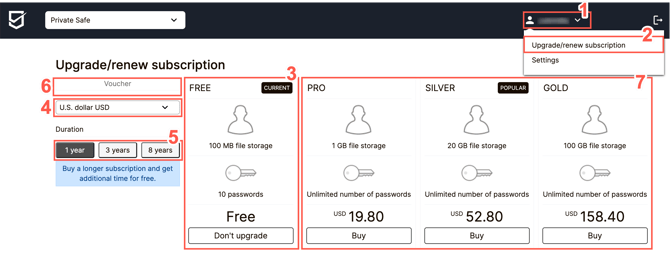
- From the dropdown menu displayed, select Upgrade / renew subscription.
- Check the overview that appears to review your current subscription type, clearly marked with the tag CURRENT.
- Select your preferred currency. Options include U.S. Dollar (USD), Swiss Franc (CHF), or Euro (EUR).
- Choose the length of your subscription term that best suits your needs. Opting for a longer term not only provides greater value but also ensures continuity and uninterrupted access to SecureSafe services.
- If you have a discount voucher code, simply enter it into the designated Voucher field. This will automatically apply the discount to the subscription options that are shown.
- Choose from the available subscription options by selecting one of the paid subscription plans (PRO, SILVER, or GOLD) and clicking on the Buy button.
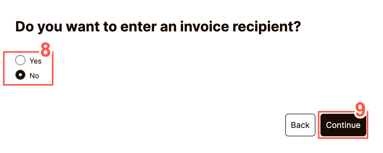
- You will then be asked if you require an invoice:
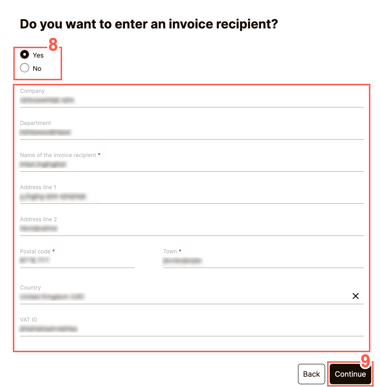
- If you need an invoice, simply select Yes when prompted. You will then be asked to fill out the necessary details in the expanded window that appears.
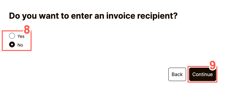
- If you do not require an invoice, choose No instead.
- If you need an invoice, simply select Yes when prompted. You will then be asked to fill out the necessary details in the expanded window that appears.
- Confirm by clicking on Continue.
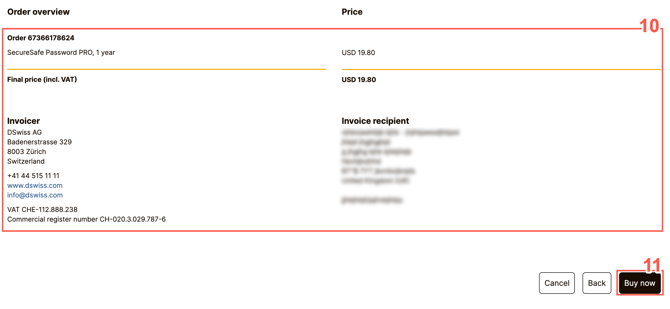
- Check the Order overview that is shown on the screen.
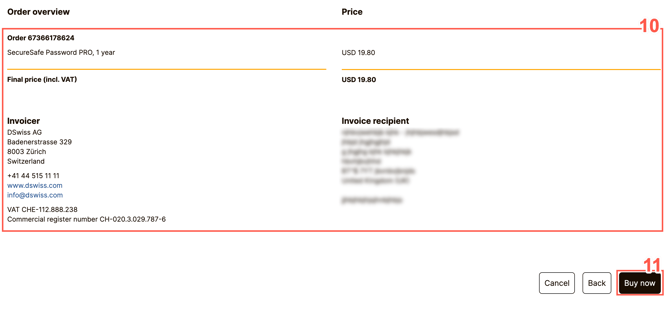
- Confirm your order by clicking on Buy now.
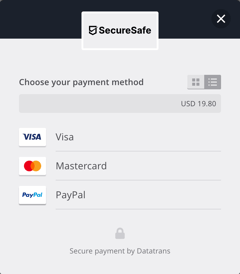
- Navigate through the payment process and select your preferred payment method between credit card or PayPal. Upon completing the payment, your account will be instantly upgraded to the new subscription level.
Renewing your subscription
In the final week of your SecureSafe subscription, you will receive two reminders prompting you to renew your subscription:
- The first reminder will be sent seven days before your account expires.
- The second reminder will be sent just one day before your account expiration date.
It is highly advised to renew your subscription upon receiving these reminder emails.
Renewing before your subscription expires
You can renew your subscription at any time before it expires using your web browser.
-
Log in at https://app.securesafe.com/app/#/login, click on your username in the upper right-hand corner of the screen, and select Upgrade / renew subscription from the dropdown menu.
-
From there, you can renew your subscription for the type and term length you require by following steps 3 to 12 in the upgrade section above.
Renewing after your subscription has expired
If your SecureSafe subscription does expire and you try to log back into your account, you will find that access is blocked. Follow the steps below to regain access to your account:
- Log in to your SecureSafe account.
- When the screen depicted below appears, you will see a message at the top notifying you that accessing your account is not possible until you renew your subscription.
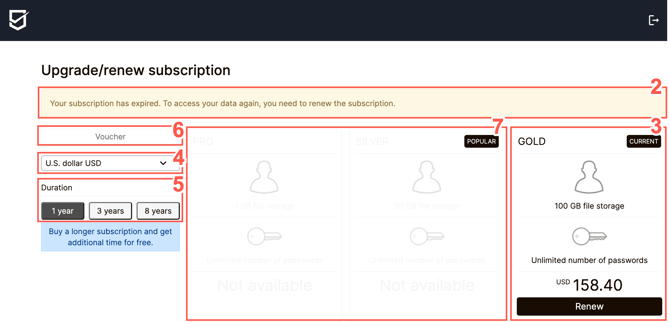
- Check the overview that appears to review your current subscription type, clearly marked with the tag CURRENT.
- Select your preferred currency. Options include U.S. Dollar (USD), Swiss Franc (CHF), or Euro (EUR).
- Choose the length of your subscription term that best suits your needs. Opting for a longer term not only provides greater value but also ensures continuity and uninterrupted access to SecureSafe services.
- If you have a discount voucher code, simply enter it into the designated Voucher field. This will automatically apply the discount to the subscription options that are shown.
- Choose from the available subscription options by selecting one of the paid subscription plans (PRO, SILVER, or GOLD) and clicking on the Renew button. If your current subscription type is GOLD, as it is the case in the example provided, the lesser subscription types are not available for selection in this case.
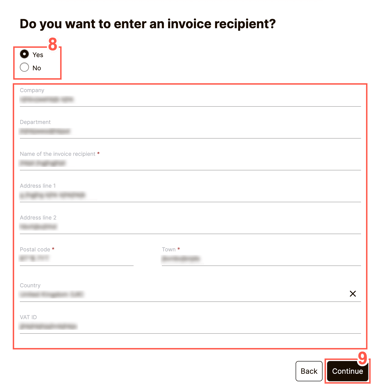
- You will then be asked if you require an invoice:
- If you need an invoice, simply select Yes when prompted. You will then be asked to fill out the necessary details in the expanded window that appears.
- If you do not require an invoice, choose No instead.
- If you need an invoice, simply select Yes when prompted. You will then be asked to fill out the necessary details in the expanded window that appears.
- Confirm by clicking on Continue.
- Check the Order overview that is shown on the screen.
- Confirm your order by clicking on Buy now.
- Navigate through the payment process and select your preferred payment method between credit card or PayPal. Once payment is completed, your account will be automatically renewed to the same subscription level, or upgraded if you selected a different subscription type.