
Applies to: SecureSafe Classic mobile app on iOS and Android
Seeing the same password listed several times in your app? Perhaps you deleted one of the copies, only for another to pop up with a little crossed-out cloud symbol next to it. Don't worry, your passwords are safe. This is a known behavior and it is easy to fix. This article explains what is going on and walks you through the solution step by step.
What You Might See
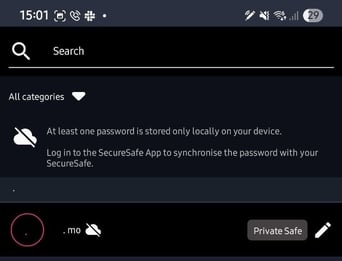
Your password list shows several identical copies of the same entry, sometimes ten or more. One of them carries a crossed-out cloud icon, and the app may show this message: "At least one password is stored only locally on your device. Log in to the SecureSafe App to synchronise the password with your SecureSafe."
Why This Happens
The crossed-out cloud means the entry lives only on your phone. This usually happens when the password was first created while the app was offline, and then created again once you were back online. The app then keeps making a fresh copy each time you log in, which is how the list of duplicates grows over time.
Before You Start
Two quick checks will make this painless:
- Open the duplicated entries and confirm the username and password inside them are correct.
- Make sure you know your SecureSafe account password and, if possible, have your recovery code to hand. You will need to log in again during the fix.
How to Fix It
- Delete the copy with the crossed-out cloud icon. This is the local version that keeps creating the duplicates.
- Uninstall the SecureSafe Classic app from your phone.
- Reinstall the app from the App Store or Google Play and log in with your SecureSafe account.
- Confirm the cloud-marked version is gone.
- Delete the remaining copies one by one until a single entry is left.
Note: You can also tidy up the remaining duplicates from the SecureSafe web portal while the app is reinstalling, if that is easier for you.
Still Seeing Duplicates?
If new copies keep appearing after you have followed all the steps above, contact our Support team. Let us know roughly when the password was first created and whether your device was offline at the time, as this helps us look into it faster.