
Introduction
This guide explains how to integrate SecureSafe with Microsoft Entra ID (formerly Azure AD) using SCIM provisioning and SAML SSO. It ensures a consistent setup process, reduces manual configuration errors, and clarifies the terminology used for SecureSafe.
-
SCIM Provisioning enables user management for SecureSafe directly within Entra ID. Supported user types include plan owner and plan users. SecureSafe requires the following Entra ID user properties for provisioning:
givenName,familyName, andemail. Make sure these are available in your tenant before proceeding. -
SAML SSO allows users to sign in to SecureSafe with their Entra ID credentials.
You must create and configure SecureSafe as a new Enterprise application. To do this, sign in to the Entra ID admin center and use the required configuration details provided by the SecureSafe team(see Pre-requisites section below).
SecureSafe Glossary
| Term | Description |
| PLAN_OWNER |
A person who manages a plan. A plan owner may invite users to a plan (as plan users or guests). A plan owner also has the capabilities and permissions of a plan user. A plan owner currently has access to the key material of all safes created under the plan. In the future we might change this to enforce a proper separation of responsibilities. |
| PLAN_USER | A person who may utilize a plan. Utilization comprises the following capabilities: creating team safes, membership management, and managing the contents of these team safes. A user may only be associated with a single plan, currently. |
| Tenant | A tenant is an entity (such as a company, organization, or individual) that uses and accesses a shared software system. While sharing the same application infrastructure a tenant’s data and configuration is isolated. Each tenant operates as though they have their own dedicated application instance, even if the underlying infrastructure is shared among multiple tenants. An example for tenant-specific configuration is white labelling. |
Pre-requisites
Before starting the configuration, make sure you have the following:
-
The plan owner must register to SecureSafe and must have an active subscription.
-
An active Microsoft Entra ID tenant with administrative permissions.
-
Access to the Entra portal;
-
You have received the following from SecureSafe team:
-
<SECURE_SAFE_SCIM_URL>- URL to the SCIM endpoints of SecureSafe -
<SECURE_SAFE_SAML_URL>- URL for SAML login to SecureSafe -
<BEARER_TOKEN>- used to authenticate EntraID calls in SecureSafe -
<TENANT_ID>- tenant id to setup login (maps to Tenant Name on SecureSafe side)
-
Step 1: Log in to SecureSafe
Log in to SecureSafe with your plan owner username and password.
Step 2: Application Creation
A new Enterprise application needs to be created in order to integrate SecureSafe.
-
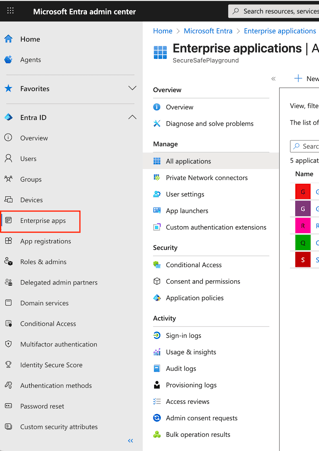
Click on Entra ID > Enterprise applications and New Application
-
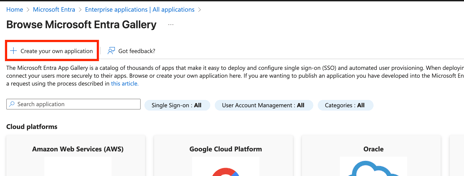
Click "Create your own application"
-
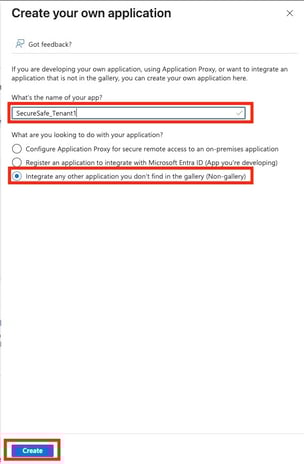
Assign a name to the application. The name needs to be unique on your EntraId. In a multi-tenant SecureSafe it might make sense to append a tenant-specific identifier, e.g.
SecureSafe_Tenant1 -
Choose "Integrate any other application you don’t find in the gallery (Non-gallery)" click Create
Step 3: Configure SCIM Provisioning
This configuration is needed in order to define which parameters of the users will be passed by Entra ID to SecureSafe. Entra ID will sync with SecureSafe every 40 minutes.
Create User Roles
SecureSafe supports two roles: PLAN_OWNER and PLAN_USER
-
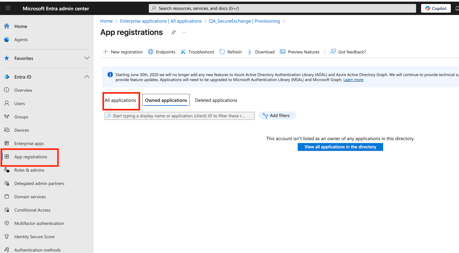
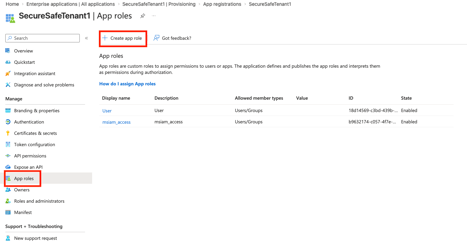
Click on App registrations > All applications
-
Select SecureSafe application
-
Select Manage > App roles
-
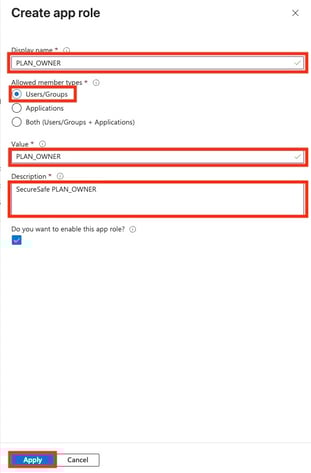
Create app role for the admin
-
Use PLAN_OWNER for display name and value, and add some meaningful description
-
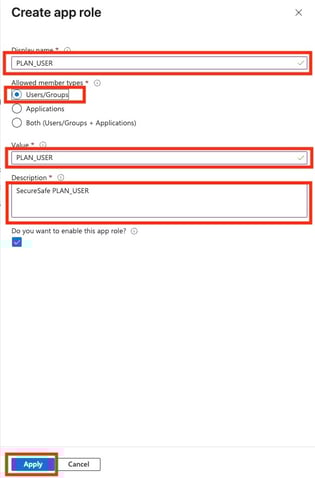
Create app role for the advisor
-
Use PLAN_USER for display name and value, and add some meaningful description
-
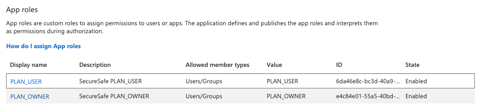
Delete all other existing roles to avoid wrong assignments
Configure Provisioning
For the provisioning we need to define the endpoints, tenant bearer token, and user attribute mapping.
-
Click on Enterprise Aplications><ApplicationName>
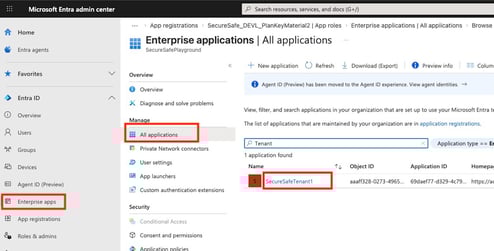
-
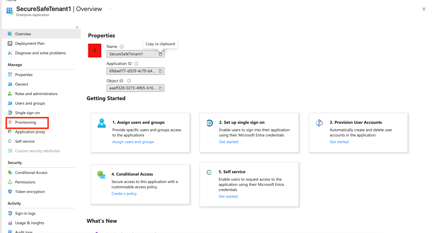
Click on Manage -> Provisioning → Get started
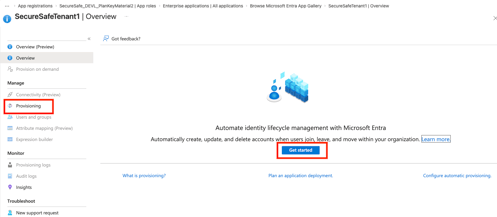
-
Set Provisioning Mode to:
Automatic -
Provide the SCIM settings:
-
SCIM endpoint:
<SECURE_SAFE_SCIM_URL> -
Secret Token:
<BEARER_TOKEN>
-
-
Test Connection → it should pass if SCIM endpoints are live
-
Click Save
-
Refresh page to see the applied changes
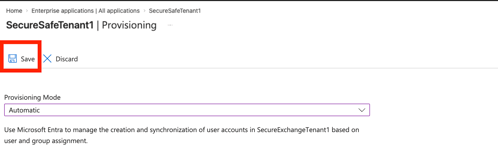
Provisioning Scope
SecureSafe doesn’t support syncing groups. This must be disabled in the created application
-
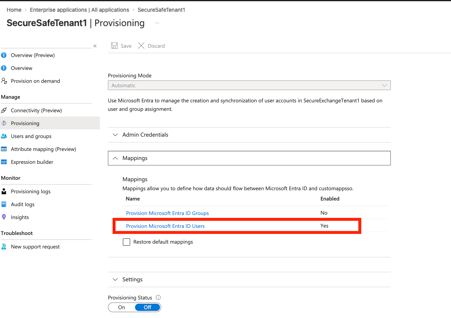
Click on Provisioning Microsoft Entra ID Groups
-
Disable and Save (maybe refresh page will be needed to update the status)
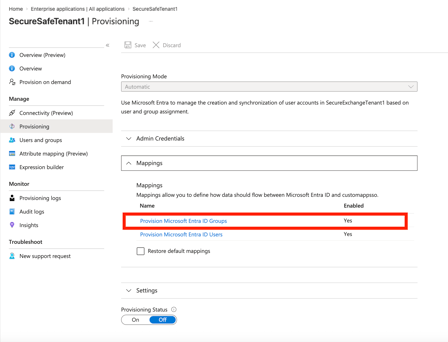
User Attribute Mapping
SecureSafe needs only an subset of the Entra ID user attributes. For some of these attributes a specific mapping is required.
-
Click on Provisioning Microsoft Entra ID Users
-
Delete any other existing mapping such that only the parameters below are configured.
-
username ( Specific Mapping described bellow)
-
active
-
email ( Specific Mapping described bellow)
-
preferredLanguage ( Specific Mapping described bellow)
-
name.givenName
-
name.familyName
-
externalId ( Specific Mapping described bellow)
-
userType ( New Custom AttSpecific Mapping described bellow)
-
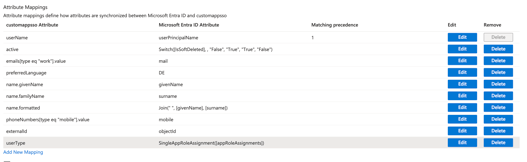
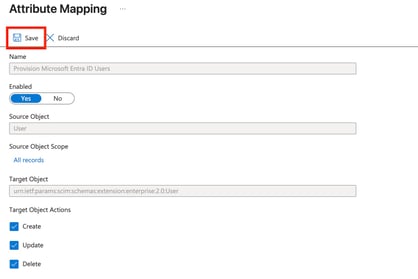
The specific mapping of a property can be defined by clicking on “Edit”. It is recommended to save after each property mapping.
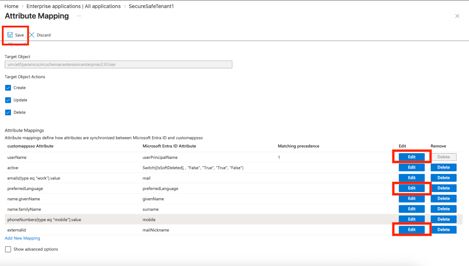
Mapping userName
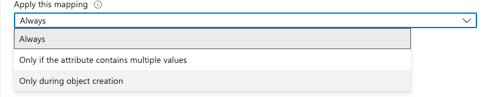
In SecureSafe user names cannot be updated. Hence, the user name should only be sent during creation.
-
Click Edit userName
-
Set this property to be sent Only during object creation
-
Ok
Mapping Email
In SecureSafe email is mandatory, you can use the default value defined on mail or you can map to use userPrincipalName in case of your users doesn’t have this information on mail .
Mapping User Language
The user language will be applied as the default for all users within the configured tenant. Since this value can be modified directly in the SecureSafe application, Entra ID does not need to send updates for it.
-
Click Edit preferredLanguage and set with a Mapping type Constant and in the constant Value set one of the following values: EN or DE or FR or IT
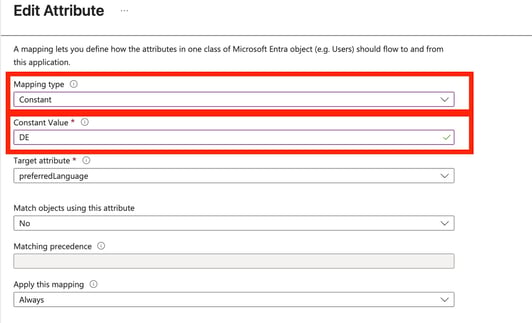
-
Set this property to be sent Only during object creation
-
Ok
Mapping externalId
The external id should be sent only during the creation and the object id shall be used as external id.
-
Click Edit externalId
-
Set this property to be sent only on creation
-
Set the source with objectId
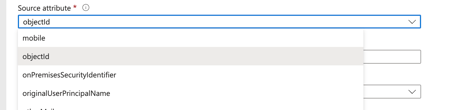
-
Click on OK
Mapping userType
The user type defines whether the user is an admin or an advisor. A user can only be an admin or an advisor, but not both.
-
Click on Add new Mapping
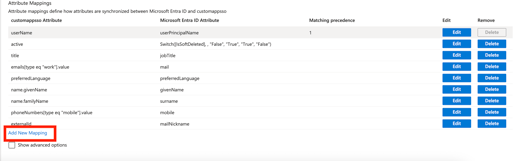
-
Define mapping type to expression and use the following expression :
SingleAppRoleAssignment([appRoleAssignments]) -
Target with userType (if this target doesn’t exist it has to be created in EntraId)
-
Click on OK
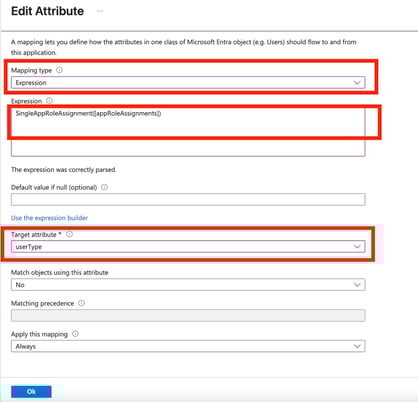
-
Check if everything is fine and save
Enable Provisioning
Once everything is configured, you can start provisioning. Entra ID will then manage the SecureSafe users based on your tenant’s data.
-
Add Users/ Groups to the application
-
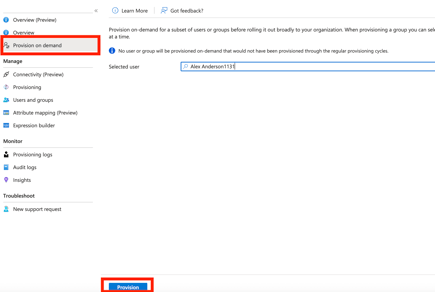
Test provisioning on Demand selecting a valid user for the application and check if the provisioning is working for a sample user.
-
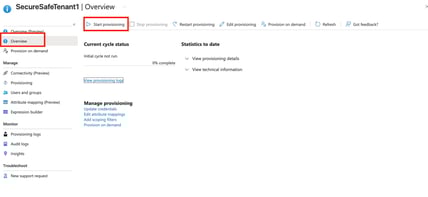
Click on Provisioning > Overview > Start provisioning
Step 4: Configure SAML SSO
This section describes how to configure SAML SSO for SecureSafe. The setup involves defining the SAML endpoints, exchanging metadata, and mapping the required attributes and claims. After configuration, users can sign in to SecureSafe with their Entra ID credentials, subject to the access policies already enforced in Entra ID.
In SecureSafe, only provisioned users are allowed to log in. This means SAML SSO authentication is limited to accounts that have been synchronized and authorized in advance, providing tighter access control.
-
Click on Single sign-on and SAML
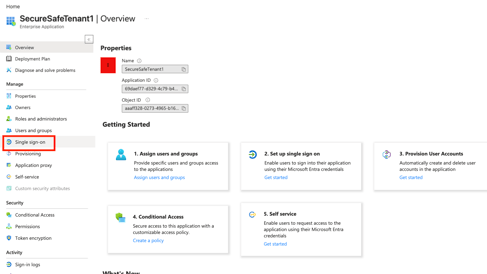
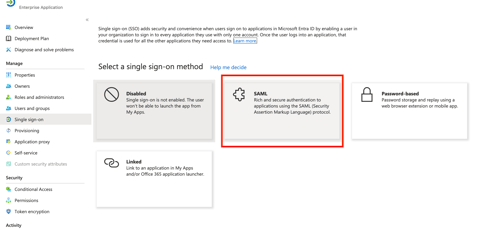
-
Click on Basic SAML Configuration Edit
-
Add Identifier →
<TENANT_ID> -
Add Reply URL →
<SECURE_SAFE_SAML_URL> -
Press “Save”
-
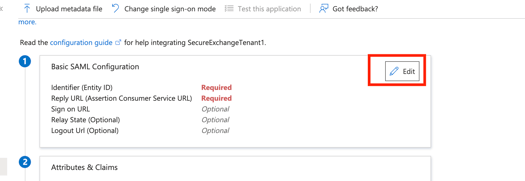
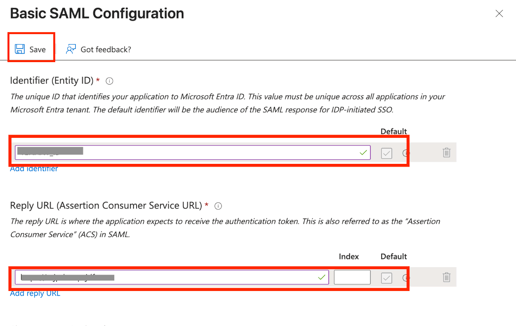
-
Download the Federation Metadata XML and copy the App Federation Metadata URL
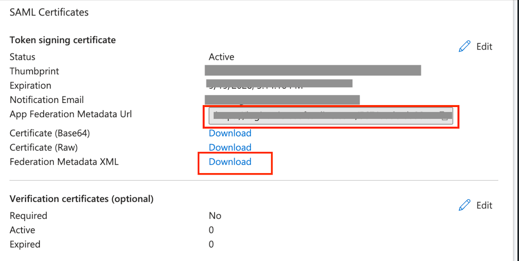
-
Share the following attributes with the SecureSafe team to enable SAML login on your instance:
-
App Federation Metadata URL
-
Federation Metadata XML
-