
Overview
Deeplinks allow users to navigate directly to a specific folder or file within SecureSafe using a shared link. These links can be opened from emails or other external sources and take the recipient directly to the referenced location, provided they have the required access rights.
Deeplinks reduce time spent navigating large Safes and help users collaborate more efficiently by pointing colleagues to an exact folder or file.
What are deeplinks
A deeplink is a URL generated within SecureSafe that references a specific folder or file. When opened, the link directs the user to that item inside the SecureSafe application after authentication.
Deeplinks do not grant access on their own. Access is determined entirely by existing permissions.
Prerequisites
To use deeplinks, the following conditions must be met:
-
The sender must have access to the Safe containing that folder or file.
-
The recipient must have access to the Safe containing that folder or file.
-
The recipient must click on the deeplink and sign in to SecureSafe. This will direct the recipient to the respective folder or file.
-
Deeplinks can be opened from supported external sources such as email clients or collaboration tools.
How to create a deeplink
-
Navigate to the folder or file within SecureSafe.
-
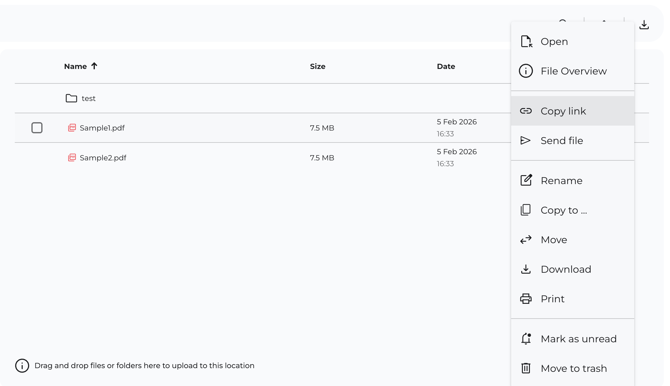
Open the context menu from the item, from the table or from the file overview.
-
Select Copy link.
-
Share the copied link via email or another external communication channel.
How recipients use a deeplink
-
The recipient clicks the deeplink from an email or external source.
-
If not already signed in, the recipient is prompted to authenticate in SecureSafe.
-
After successful authentication, SecureSafe opens directly to the referenced folder or file.
If the recipient does not have sufficient permissions, access is denied.
Permissions and access behavior
-
Deeplinks respect SecureSafe’s existing permission model.
-
Users without access rights cannot view or open the referenced folder or file.
-
Deeplinks do not override, elevate, or modify permissions.
-
Removing a user’s access to a folder or file will immediately prevent them from opening deeplinks to that item.
Typical use cases
-
Opening an audit-related folder directly from an email notification.
-
Directing a colleague to a shared folder or file during collaboration.
-
Reducing navigation time in large Safes containing many folders or files.