![SecureSafe_whitel.png]](https://help.securesafe.com/hs-fs/hubfs/SecureSafe_whitel.png?height=40&name=SecureSafe_whitel.png)
Note:
The information in this article applies to all S-Trust users, unless otherwise stated.
-
If you need more help from and details about your S-Trust account, go here: https://www.s-trust.de/produkteinstellung.html
When is S-Trust being discontinued?
S-Trust will be fully discontinued on March 31, 2026. There will be product changes happening in a phased approach. Key dates include:
-
01.02.2026: Desktop app will be disabled and removed
-
01.03.2026: iOS app will be disabled and removed
-
01.03.2026: Android app will be disabled and removed
-
01.03.2026: Browser extensions (Chrome, Edge, Safari, Firefox) will be disabled and removed
-
31.03.2026: Web app will be disabled and removed
Until when can I access (and transfer) my data?
You can access and transfer your data up to and including March 31, 2026.
How can I transfer my data?
There are multiple ways to export your data. We recommend transferring your data to SecureSafe, as this is the product S-Trust is based on.
Note:
Make sure to transfer your data by March 31, 2026. Otherwise you will loose access to all the data (passwords and files) currently stored in your S-Trust account.
-
Follow the link provided in your official email communication or navigate to https://www.securesafe.com/s-trust/wechsel-zu-securesafe
-
Pick a plan suitable for your needs. You will be directed to the registration page for SecureSafe.
-
Create a SecureSafe account and complete the purchase process.
-
SecureSafe will prompt you to transfer your data from S-Trust to SecureSafe.
-
Provide your S-Trust credential.
-
Pick whether you want to transfer files and/or passwords. We recommend to chose both, just in case.
-
Confirm to start the transfer process.
-
You will receive an email, when your S-Trust data is ready to be transferred. Alternatively you can refresh the page in SecureSafe. You will be asked to continue, once your data is available for transfer.
-
Confirm to continue the transfer process.
-
You will receive an email, when your S-Trust data has been transferred. Alternatively you can refresh the page in SecureSafe. You will see your transferred passwords and files in SecureSafe, once the process is completed.
A more detailed description can be found at https://www.s-trust.de/produkteinstellung.html
Important
Starting the transfer process will automatically cancel ongoing payments for your S-Trust account. Your S-Trust plan will stay as is, but it will be free of charge until S-Trust is discontinued.
What happens if I miss the timeframe for transferring my data?
If you do not transfer your data before March 31, 2026, we will not be able to recover or restore any remaining data from S-Trust. We strongly recommend initiating your transfer well in advance of the deadline to avoid any loss of data.
If you have questions or need assistance, please contact our support team: https://www.securesafe.com/s-trust/support
What happens to my data on S-Trust after March 31, 2026?
All data remaining on S-Trust after March 31, 2026 will be permanently and securely deleted. This deletion is final and cannot be reversed.
Is my data still secure during the data transfer process?
Yes. Throughout the entire transition period, your data remains protected under the same high standards of encryption and operational security that apply to both S-Trust and SecureSafe. All data handling and transfer processes follow established security controls and audited protocols.
I want to export my data manually. How can I ensure my exported data is secure?
To keep your exported data protected, follow these precautions:
-
Store the export only on a secure device (e.g., a device you control, protected by a strong password and up-to-date security measures).
-
Avoid copying, sharing, or uploading the export to any location that is not encrypted or access-controlled.
-
Delete temporary copies once the data has been successfully imported, if they are no longer needed.
The best way to securely move your data to a new password and file manager is to use the transfer process from S-Trust to SecureSafe.
Who can I reach out to for help with the transition or with urgent questions?
-
For questions around your S-Trust account the S-Trust support team is available to you until the 31st of March 2026. Contact them at support@s-trust.de. Or check the FAQ section here: https://www.s-trust.de/produkteinstellung.html
-
If you need support during the data transfer or have general questions about SecureSafe, please contact our support team here: https://www.securesafe.com/s-trust/support
What are the differences between S-Trust and SecureSafe?
You can find a detailed overview of the differences between the apps in the following article: Old vs New
If you have additional questions after reviewing the article, our support team will be happy to assist you. You can contact our support team here: https://www.securesafe.com/s-trust/support
Why don’t I see the correct coupon code applied?
The discounts are applied automatically only when you select a subscription plan directly from the dedicated offer page: https://www.securesafe.com/s-trust/wechsel-zu-securesafe
If you choose a plan from the general SecureSafe pricing page, the promotional pricing will not be applied during checkout.
If you have any questions or need assistance, please contact our support team: https://www.securesafe.com/s-trust/support
How does this offer differ from the standard SecureSafe plans?
As a Sparkassen customer, you receive substantial preferential pricing up to 40% below the standard SecureSafe rates. This special pricing reflects existing Sparkassen conditions and ensures that your migration from S-Trust to SecureSafe is not influenced by cost differences.
In addition to the general Sparkassen discount, you can secure an extra price reduction by transferring your data to SecureSafe on or before March 31, 2026.
This migration bonus is granted for the first 12 months following your SecureSafe signup. After this introductory period, the additional bonus expires, while your underlying Sparkassen discount remains in effect without limitation.
If you require detailed or product-specific pricing information, please contact our support team here: https://www.securesafe.com/s-trust/support
All discounts are already reflected in the plan prices shown on the offer page: https://www.securesafe.com/s-trust/wechsel-zu-securesafe
What happens to my terms and conditions when I migrate from S-Trust to SecureSafe?
When you migrate from S-Trust to SecureSafe, you become a customer of DSwiss AG. As a result, your account will be governed by our End User Terms. You can review them here: https://www.dswiss.com/en/end-user-terms
Your legal protections remain fully preserved. We have ensured that the contractual safeguards and data-protection standards you had under the S-Trust terms are maintained under the DSwiss terms and conditions. If you have any questions or require clarification, our support team is available to assist you: https://www.securesafe.com/s-trust/support
What happens if I have more files in S-Trust than the storage included in my SecureSafe plan?
All your files will be transferred to SecureSafe, regardless of whether the total size exceeds the storage quota of your SecureSafe plan. The migration process does not block or exclude data even if your quota is surpassed.
I created an account for SecureSafe Next. Why are my credentials not working in the mobile app?
If your login credentials are not working, please check whether you are using the correct app.
SecureSafe has two different mobile apps: one for SecureSafe Next and one for the older SecureSafe Classic. Your credentials only work in the app that matches your product.
Please use the correct app for your account:
If you are already using the correct app but still cannot log in, please contact our support team here.
Why are my passwords not showing up in the mobile app?
This usually happens when the wrong app is installed.
SecureSafe Next and SecureSafe Classic store data separately, and passwords will only appear in the app that belongs to your product.
Please check that you are using the correct app:
If you have installed the correct app but still do not see your passwords, please contact our support team here.
Can I migrate multiple Team-Safes?
Yes. All Team-Safes which you are a member will be migrated to SecureSafe. If multiple TeamSafes share the same name, they will be automatically differentiated by an appended number (e.g., TeamDocuments_1, TeamDocuments_2).
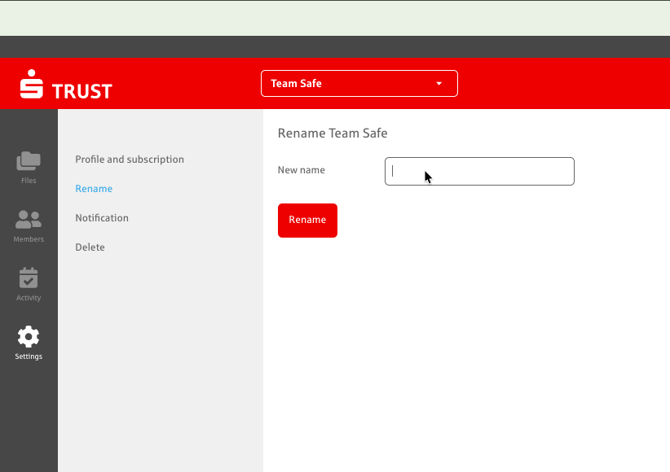
If you administer a TeamSafe, you can rename it at any time to better distinguish it from others. Simply navigate to TeamSafe → Settings → Rename.