
⚠️ Currently, the Desktop app is available for macOS (Apple Silicon), macOS (Intel) and Windows. ARM support for Windows is coming soon!
Start by downloading the desktop app of your choice here.
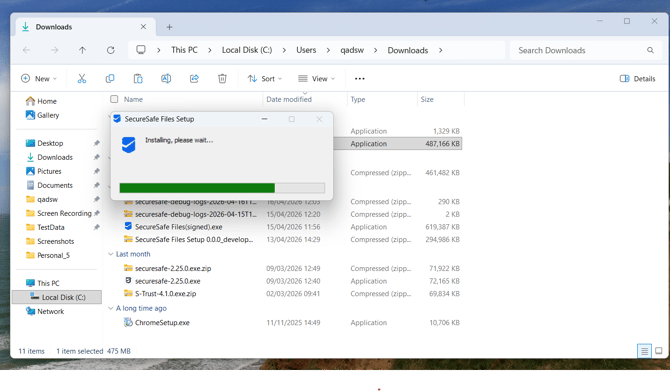
After you have downloaded the app, for Mac or Windows, you can open the package on your desktop and follow the installation steps.
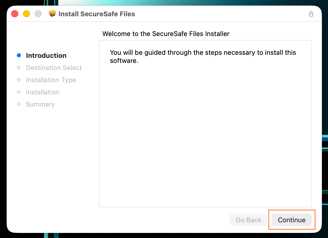
Once the .pkg or .exe file opens, click Continue:
| Mac | Windows |
 |
|
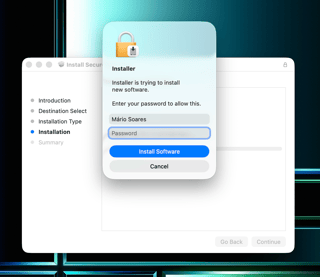
You might need to confirm your identity by entering your device’s password:
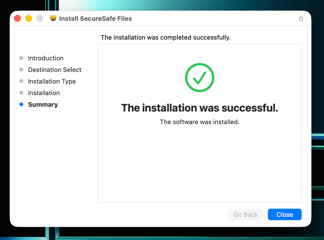
Follow your operating system steps until the application has been successfully installed:
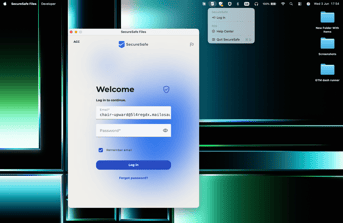
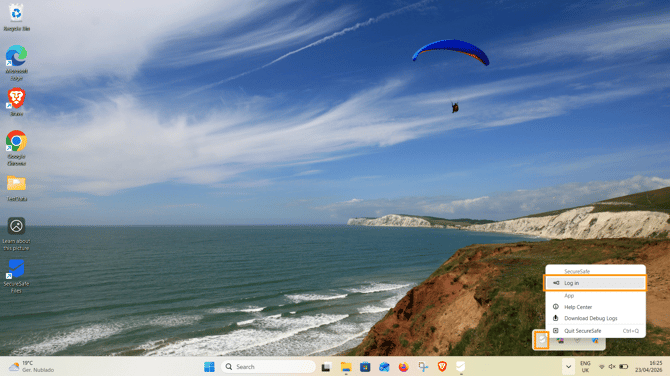
You can now open your SecureSafe Desktop App for files:
| Mac | Windows |
 |
|
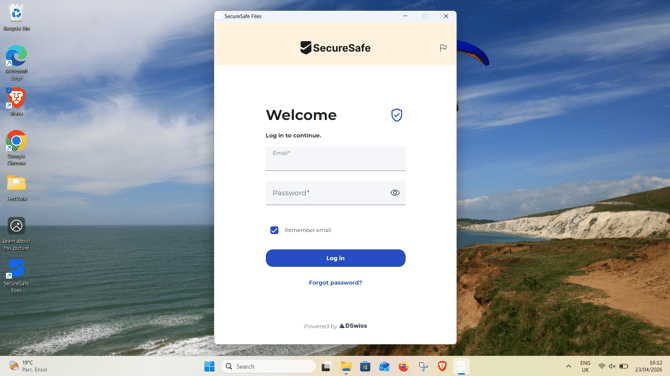
You may be asked to complete two-factor authentication (2FA) if it is enabled for your account.
You can check the Remember email checkbox, and your email will always be stored in the email field.
You can also set the Stay Signed In option in your preferences. This removes the need to authenticate every time you start your workday.
Where are my synchronized files stored?
SecureSafe File synchronizes your data to a fixed local folder on your device. The location depends on your operating system:
- Windows: C:\Users\USERNAME\SecureSafe Files
- macOS: /Users/USERNAME/SecureSafe Files
Can I change the location of the sync folder?
Changing the sync folder location is currently not possible. All files are always synchronized to the folder listed above.
To learn how to set up your preferences, see this article.