
Navigating and working with your files and folders is simple – just as you are used to on your PC or Mac.
Folder and file additions work inside your file explorer; there is no need to interact with the Desktop app. Let’s see an example:
As you can see, upon a sync, either manual or automatic, all the new or removed files/folders are sent to the server and are now accessible by other team members.
All restrictions to file/folder upload or creation on the web are also applicable for these created on your local machine.
⚠️ Good to know:
SecureSafe does not allow the upload of files that have the following characters:
-
/ (forward slash)
-
\ (backslash)
-
< (less than)
-
> (greater than)
-
: (colon)
-
" (double quote)
-
| (vertical bar or pipe)
-
? (question mark)
-
* (asterisk)
-
Dot at the end of the file name (.)
You can manually trigger a synchronization process at any given time by clicking on the Sync Now button or Sync all files option on your tray menu (Mac) or task bar (windows):
| Mac | Windows |
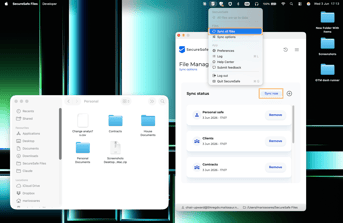 |
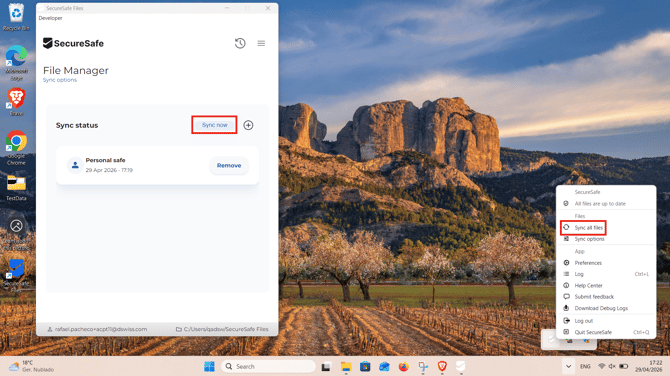
|
This sync process can also be automatic; check this help article.