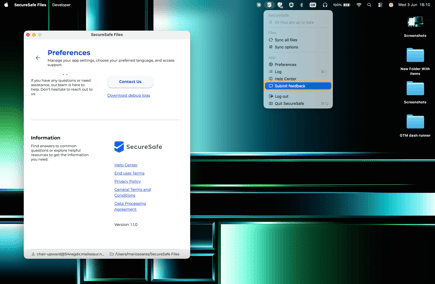
On your app, click on the 3-line menu or on your SecureSafe icon in the tray menu to access the Preferences section:
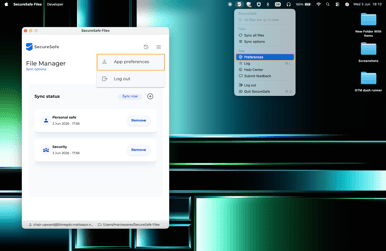
In here, you can make some changes to your SecureSafe Desktop App behavior. Let’s go over them, one by one.
App start preferences
In here, toggling on the “Open app at startup” option will make the Desktop App initially start as soon as you turn on your device.
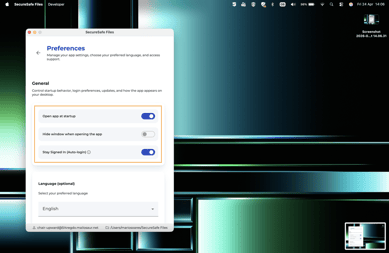
The “Hide window when opening the app” can be toggled on if you want to use the desktop app only by accessing it from your tray menu on Mac or task bar on Windows. The window will only open when you click on the actual app icon on your Dock.
Finally, the “Stay Signed In (Auto-login)” option allows you to trust a specific machine and maintain your session open until you manually log out of the Desktop App:
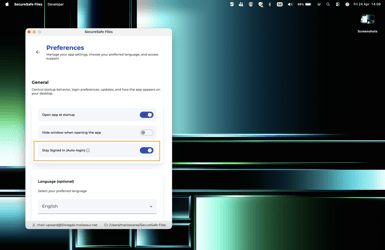
⚠️ This option should only be enabled on devices you trust, like your work laptop or personal laptop.
With this setting enabled, your session will be maintained while you’re using your computer, even on sleep mode. This allows the Desktop App to continue working while you take a rest!
Language
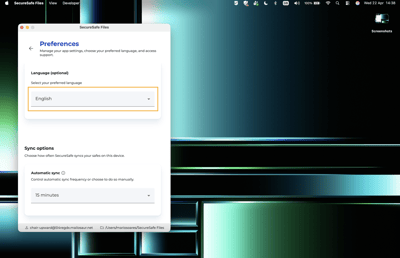
In here, you can select the language of your Desktop App. This setting is specific to the app and does not change on the web, browser extension, or mobile platforms:
Automatic Sync Options
In addition to manually syncing your files at any given time, the power of the desktop app resides on the automatic sync:
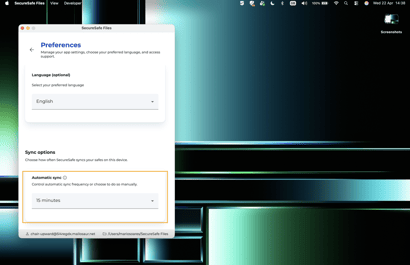
Automatic sync allows the Desktop App to sync your files to your local machine (SecureSafe Files folder) on a regular schedule, determined by you.
You can select between a sync every 5, 15, or 30 minutes, or every 1, 4, or 8 hours. This will obviously depend on how up-to-date you want your files and the size of your team – as well as the updates they do on files.
You can also do a sync process at any given time by manually syncing your files.
If you don’t want to have an automatic sync running, you can select Never as an option. This will turn off automatic sync. and you will need to manually sync every time.
Information and Feedback
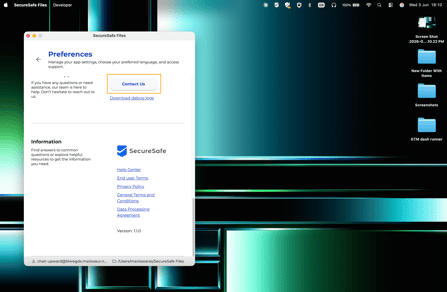
To contact our Support team with any questions or problems you might have, you can click on the Contact Us button. If needed, download the Debug logs so you can send them to our support team, if requested.
If you would like to reach out to our Product Team with feedback regarding the functionalities of the Desktop App, or improvements you would like to see happening, you can submit your feedback by clicking on this option on your tray menu (Mac) or task bar (Windows):