Note:
SecureSafe for Android is currently in development. This is available for iOS only at this moment.
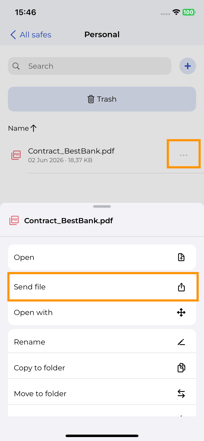
On any file, click on the 3-dots menu, and select Share File:
A new window will show, allowing you to populate the name of the recipient, email, and any message you might want to share with the recipient:
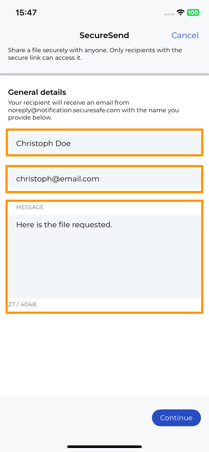
When you’re done, click on Continue. A new window will show.
Here you can define if you want your SecureSend to have a code before opening the file by the recipient, the language of the email sent to the recipient, and the validity you want the link to have:
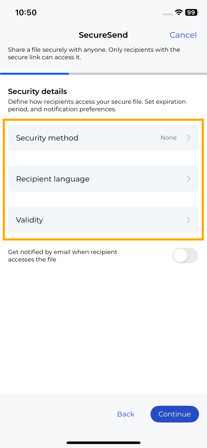
On the security method, you can choose None or Code:
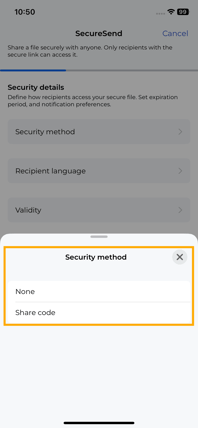
By selecting Code, the recipient will have to enter a code before downloading the file. This code is delivered to the recipient by you. If None, the recipient will be able to just download the file from the link.
You can also select if you want to receive an email once the recipient accesses the file to download it. After clicking on Continue, you will see a Summary page with all the information:
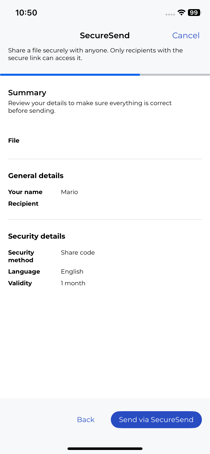
When you click on Send via SecureSend, the file is sent, and you have a new confirmation page:
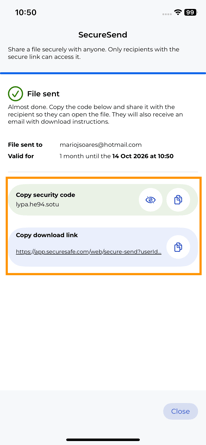
In here, you can copy or see the security code, if you selected this option, and also copy the link to download the file.
The recipient will receive an email with a link to download the file in his email:
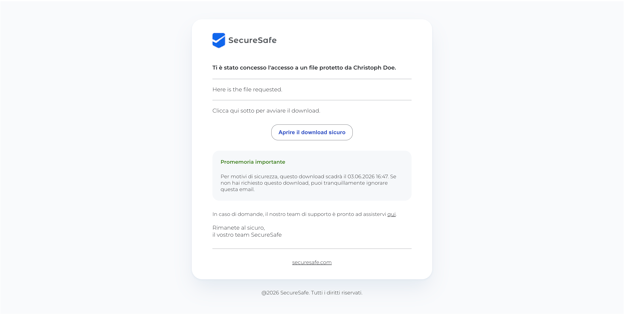
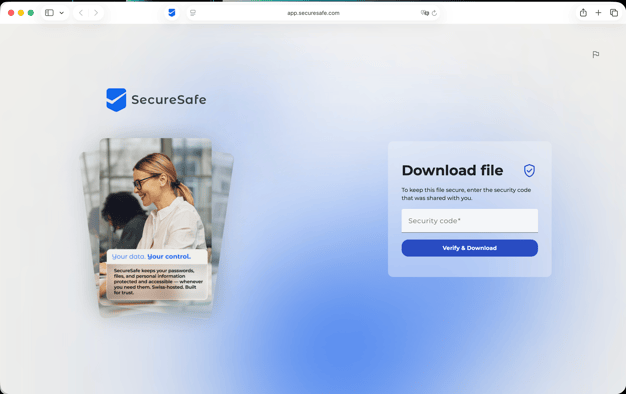
Once the recipient clicks on the Download button, he is taken to a webpage, and the download starts, if you didn’t add a code as asecurity measure:
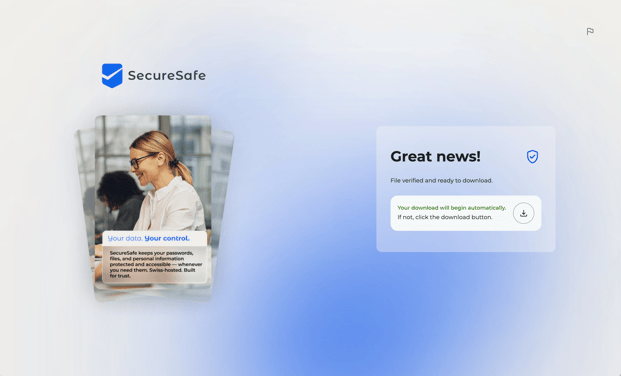
Or if you did, the recipient must fill out the code before: