Overview
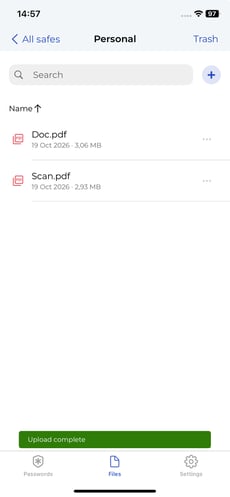
You can scan paper documents directly into your safes with the SecureSafe mobile app. Each scan is saved as a PDF in the location you choose, so you don’t need a separate scanning app.
Before You Start
Note: Document scanning is currently only available in the SecureSafe app for iOS. It is not yet available on Android.
- SecureSafe needs access to your device’s camera. You will be asked to allow this the first time you scan.
Scan a Document
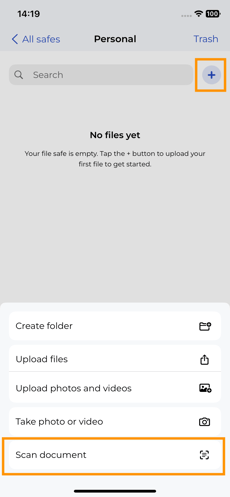
1. In the File Manager, tap the plus button, then tap Scan Document.
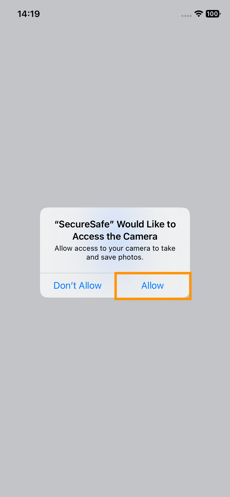
2. If prompted, allow SecureSafe to access your camera.
Note: If you previously denied camera access, enable it in your iOS Settings under SecureSafe.
3. Position the document in the camera view. SecureSafe shows guides when it detects the page edges.
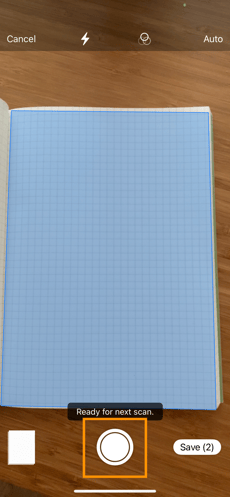
Note: All pages captured in one session are saved together as a single PDF.
Edit a Scanned Page
1. Tap the page thumbnail in the bottom left corner.
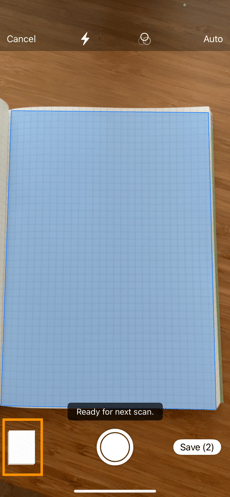
2. To capture the page again, tap Retake in the top right corner.
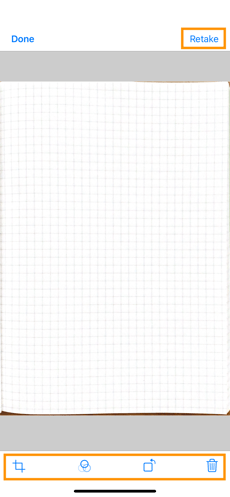
- You can resize your scan so it matches completely to the document
- you can change the colors
- rotate the scan, or
- delete it.
4. When you’re happy with the changes, click on Done, and you will be moved back to the camera.
Review and Save Your Scan
1. When you have captured all pages, tap Save. SecureSafe opens a review screen.
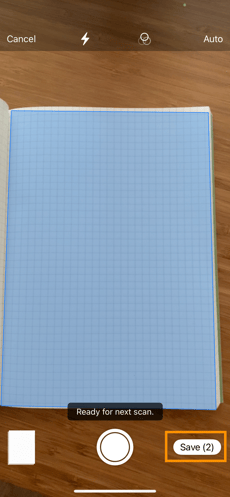
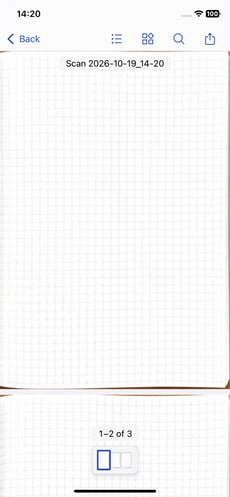
2. SecureSafe will ask you to review your document before saving:
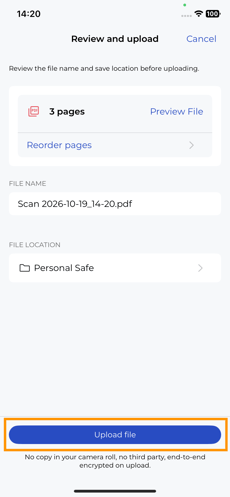
Note: You cannot edit the file in Preview. To correct a page, go back and retake it.
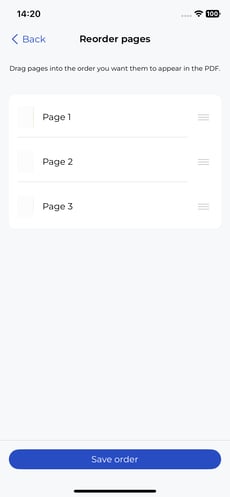
4. If your scan has more than one page, tap Reorder pages and drag the pages into the order you want.
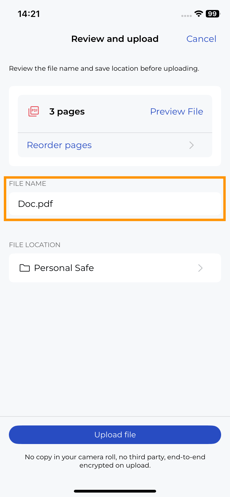
5. Tap the name field and enter a name for the document.
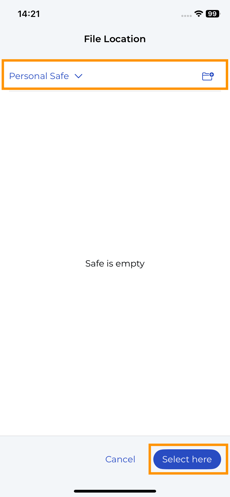
6. To save the file somewhere other than your current folder, tap File Location and navigate to the safe or folder you want.
7. Tap Upload File. SecureSafe uploads the PDF to the selected location.
8. SecureSafe uploads the PDF to the selected location.