
Login on the Mobile App uses a Secure Remote Password Protocol, for your data safety. You can login in your SecureSafe using your email and password, or biometric authentication.
To see how you can enable biometric authentication, go to Biometric Login
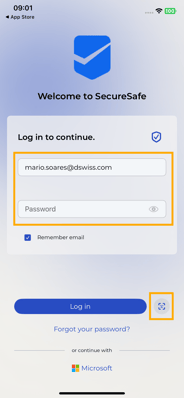
To login, open your SecureSafe app. Input your email and password, or use Biometric Login. If you don’t see the biometric login option, you need to enable it in the settings:
If you want the app to always remember your email, you can also select this option:
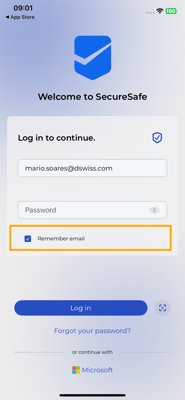
This will keep your email pre-filled, and you will only need to input your password.
If you have 2-Factor Authentication enabled for your account, for the first login, you will be asked to provide the 2FA code:
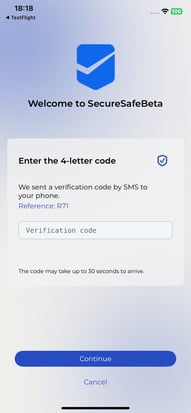
This 2FA code is sent to the mobile number registered in your account settings. You can request a new code after 30 seconds:
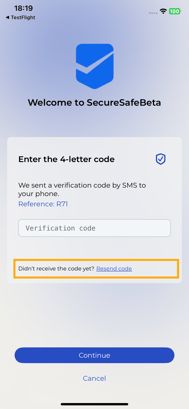
This 2FA request is only made once, and periodically after, since the mobile app has DoubleSec. DoubleSec is a SecureSafe feature that recognizes your device, and markes it as a Secure device if you have logged in more than once, and/or you have Biometric Login activated. This makes the login process smoother, while maintaining high security standards.
You’re now logged in. If you have any passwords, you will see your Password Dashboard. If you don’t have any passwords in your account, see Creating a Password.
Captcha Verification
As an additional Security Measure, you can be asked to fill in a CAPTCHA verification code.
This is done in case the mobile app detects any strange activity, or an insecure connection is also detected. To continue using the app, just input the text you see, and click on Verify.
Login with Microsoft
If your organization has SSO, you can login using Microsoft Entra ID in the SecureSafe mobile app. To do so, click on the Microsoft logo in the login page:
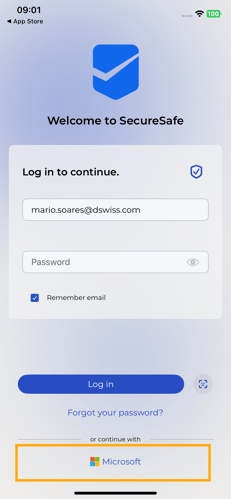
You will be redirected to the Microsoft login page for your first authentication:
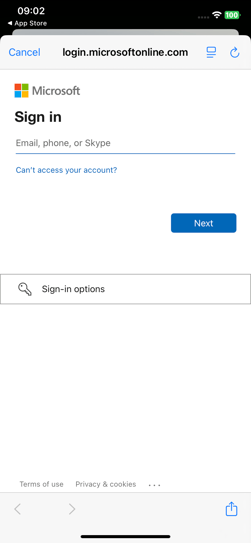
After this, you're all set. You can log in using Microsoft by clicking the Microsoft icon and selecting your account from the list.
Please be aware that Biometric login is not available for SSO accounts.