
Overview
The SecureSafe mobile app lets you filter your password list by safe, by category, or by both. Filtering helps you find a password quickly when it belongs to a specific team safe or category, and it works alongside the existing search.
Filter Your Password List
1. Open your password list and tap the filter icon on the top right.
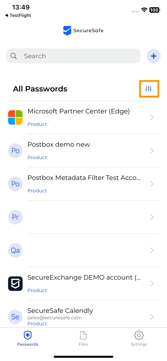
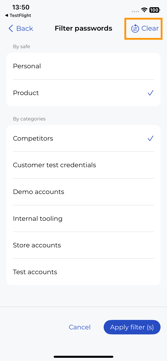
2. Select the safes, categories, or both that you want to filter by. The filter screen lists every safe you have access to and every existing category.
Note: When you select a category, SecureSafe automatically selects the safes that contain it and hides categories that belong only to other safes.
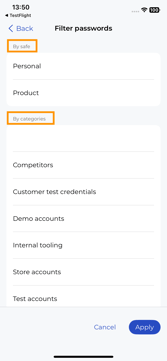
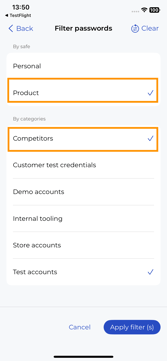
3. Tap Apply Filters. The list now shows only passwords that match your selection.
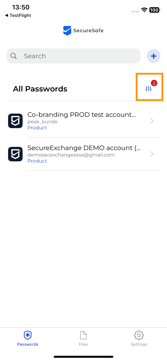
Remove Filters
The filter icon shows how many filters are currently active. To return to your full list, tap the filter icon and tap Clear, or unselect the options individually and tap Apply Filters.
Related Articles
To add or edit categories on a password, see Manage Categories in the SecureSafe Mobile App.