
Overview
The activity log keeps a record of what happens inside a team safe: files that are uploaded, viewed, downloaded or moved to trash; passwords that are created or removed; folders that are created; and members who are added to the safe. Only current members of a team safe can view its activity log. The activity log cannot be changed - all team safe members incl administrators of the safe get to see a read-only overview that contains all logged actitivity since the member viewing the log joined the safe.
Prerequisites
- You are a current member of the team safe whose activity you want to review
View the activity log
- Select the team safe from the safe dropdown
- Click the history icon next to the team safe name, alongside the edit, member and settings icons
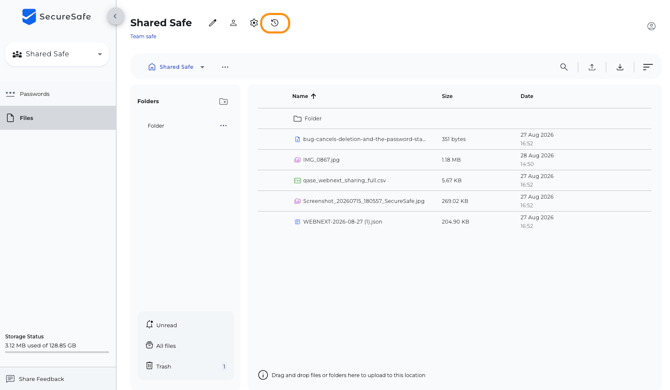
- The Activity log page opens, listing recent activity for that safe with the newest entries at the top
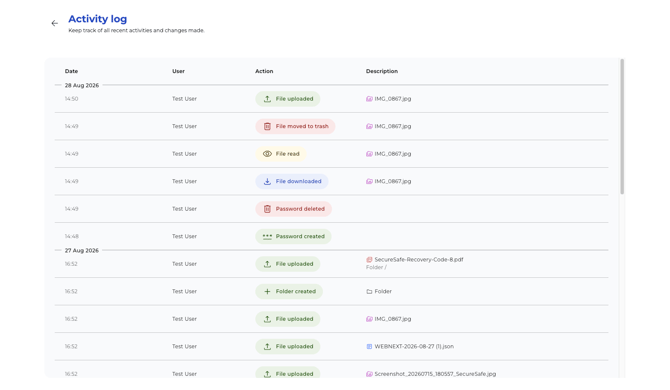
Each entry in the log shows:
- Date - activity is grouped by day and the Date column shows the time atb which an activity was performed
- User - who performed the action
- Action - a short, colour-coded label describing what happened, for example File uploaded, File downloaded, File moved to trash, Password created, Folder created or Member added to safe
- Description - further detail where available, such as a file name and folder path, or the email address of a member who was added
Please note: the activity log never displays password values themselves, only the type of action taken.
- Click the back arrow at the top of the page to return to the team safe
Overview of activities logged
| Domain | Action |
| Passwords | Password added |
| Password deleted | |
| Password updated | |
| Files | File uploaded |
| File downloaded | |
| File read (preview) | |
| File renamed | |
| File moved to trash | |
| File restored from trash | |
| File deleted (permanent) | |
| File moved | |
| Folders | Folder created |
| Folder renamed | |
| Folder moved | |
| Folder deleted (for folder deleted or moved to trash) | |
| Safes | Member added to safe |
| Member removed from safe | |
| Member role changed | |
| Safe renamed |
Typical use cases
- Confirm who uploaded, downloaded or moved a specific file
- Check when a password was added to, edited or removed from the safe
- Review who has joined the safe and when